


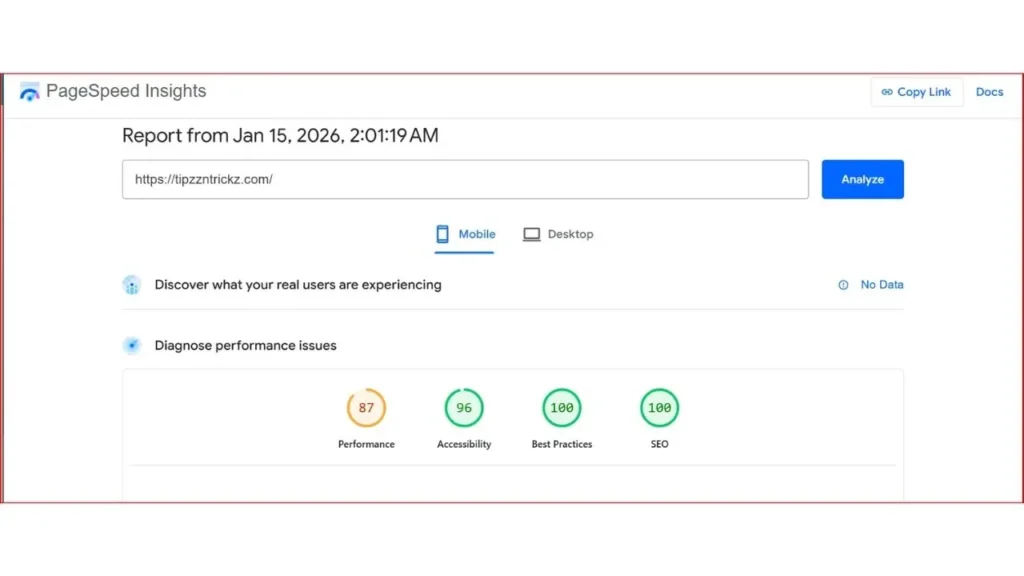
In this WordPress Speed Optimization case study, I will show you exactly how I took my slow site from a Red score of 65 to a Green score of 87+ using free tools.
I recently tackled a frustrating issue with my site, Tipzz N Trickz. My Google PageSpeed Insights mobile score was stuck at 65 (Red Zone), and the “Largest Contentful Paint” (LCP) was a painful 4.5 seconds.
I knew that to get AdSense approval, my user experience had to be flawless. Nobody waits 4 seconds for a site to load.
After applying a few smart tweaks, my score jumped to 87+ (Green Zone), and the site now loads like a rocket 🚀. This post is a personal breakdown of my WordPress Speed Optimization journey — no fluff, just results.

Step 1: The Heavy Logo Mistake (The Big Win)
My logo file (Tipzz-N-Trickz-Logo.png) was 192 KB — way too heavy for mobile data. This was the main culprit killing my LCP score.
What I did:
- Downloaded my logo.
- Used TinyPNG (a free online tool) to compress it down to 11 KB.
- Re-uploaded the optimized logo to my site header.
Result: This instantly fixed the LCP issue and shaved off nearly 2 seconds from the load time. If you have a slow site, check your logo size first!
Step 2: CSS & Google Fonts Fix

My site was making too many separate requests to the server. I used the Autoptimize plugin to clean up my CSS and font loading.
Settings I enabled:
- ✅ Aggregate CSS-files (Found in the JS, CSS & HTML tab).
- ✅ Combine and link Google Fonts in head (Note: I found this setting under the “Extra” tab in Autoptimize).
Why it works: Combining stylesheets reduces HTTP requests. Loading fonts in the head prevents the text from being invisible or flashing while the page loads.
Step 3: Next-Gen Image Conversion
Old PNG and JPG images were slowing things down. Google loves “Next-Gen” formats like WebP because they are much smaller in size.
The Fix:
- I installed the Converter for Media plugin.
- I clicked “Start Bulk Optimization” to auto-convert all my existing images to WebP format.
Result: Images now load faster and use less bandwidth — a big win for mobile users.
Step 4: Fixing Cache Policy
Google flagged my site for having a “7-day cache policy.” It wanted static assets (like images) to be cached for longer to save data for repeat visitors.
Solution:
- Installed WP Fastest Cache (Free version).
- Enabled the “Browser Caching” checkbox.
- This forces the server to set the expiration time to 1 year instead of 7 days.
Step 5: Removing JavaScript Bloat
I discovered that Microsoft Clarity was injecting heavy JavaScript (clarity.js) that took over 26KB of bandwidth.
Action Taken: I deactivated and deleted the Clarity plugin. While heatmaps are useful, right now, speed and AdSense approval are my top priorities.
Result: JavaScript execution time dropped, and my site became noticeably snappy on mobile devices.
Conclusion
This WordPress Speed Optimization case study proves that small changes can make a big difference. From compressing a logo to tweaking cache settings, I went from a sluggish 65 to a solid 87+ on mobile — all without spending a rupee on premium plugins.
Have you tried optimizing your site speed? Drop your current PageSpeed score and hosting provider in the comments — let’s compare notes!
Frequently Asked Questions (FAQ)
Why is WordPress Speed Optimization important?
Speed is a ranking factor for Google. Proper WordPress Speed Optimization ensures your visitors don’t leave your site because of slow loading times, which also helps with AdSense approval.
Do I need paid plugins for speed?
No. As shown in this guide, you can achieve great results with free plugins. WordPress Speed Optimization is mostly about smart configuration, not expensive tools.
How often should I check my site speed?
You should check your PageSpeed Insights score once a month or whenever you install a new plugin to maintain your WordPress Speed Optimization efforts.
Related Posts
- Top 7 AI Tools You Must Try in 2025 – Boost Productivity
- Vivo X200 FE & Vivo X Fold 5 Launched in India – Specs, Price, Offers & Comparison
Stay Connected
📱 Instagram: @tipzzntrickz
📘 Facebook: @tipzzntrickz
💬 Questions? Visit our Contact or About