

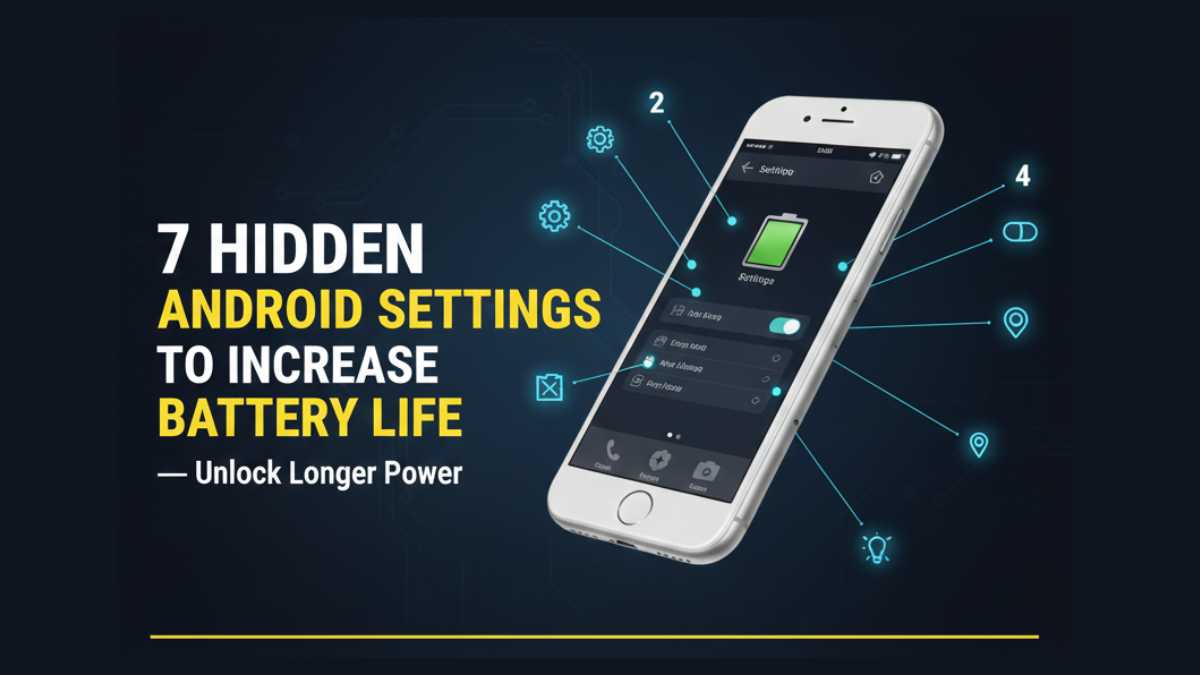
Tired of charging your phone 3 times a day? You are not alone. Whether you own a budget device or a flagship beast, battery drainage is a real struggle for everyone. We all want to increase Android battery life, but downloading “Battery Saver” apps usually drains more power than it saves.
In this guide, I will show you 7 hidden Android settings (including secret Developer Options) that actually work. No downloads. No root. Just smart tweaks to increase Android battery life instantly.
(Insert “Table of Contents” Block Here)
1. Reduce Animation Scale to Save Battery
Animations look fancy, but they eat battery for breakfast. If you want to increase Android battery life significantly, this is the first setting you must change.
How to fix it:
- Go to Settings → About Phone.
- Tap ‘Build Number’ 7 times to unlock Developer Options.
- Go to Settings → System → Developer Options.
- Find Window Animation Scale, Transition Animation Scale, and Animator Duration Scale.
- Change all of them from 1x to 0.5x.
Result: Your phone will feel 2x faster and use less power for visual effects.
2. Restrict Background Data
Apps like Facebook, Instagram, and Twitter are notorious for running in the background. They keep refreshing constantly, killing your goal to increase Android battery life.
How to fix it:
- Go to Settings → Apps → [Select App].
- Tap on Mobile Data & Wi-Fi.
- Toggle OFF “Background Data”.
Do this for apps you don’t use every hour. Your battery will thank you.
3. Use Dark Mode (The AMOLED Hack)
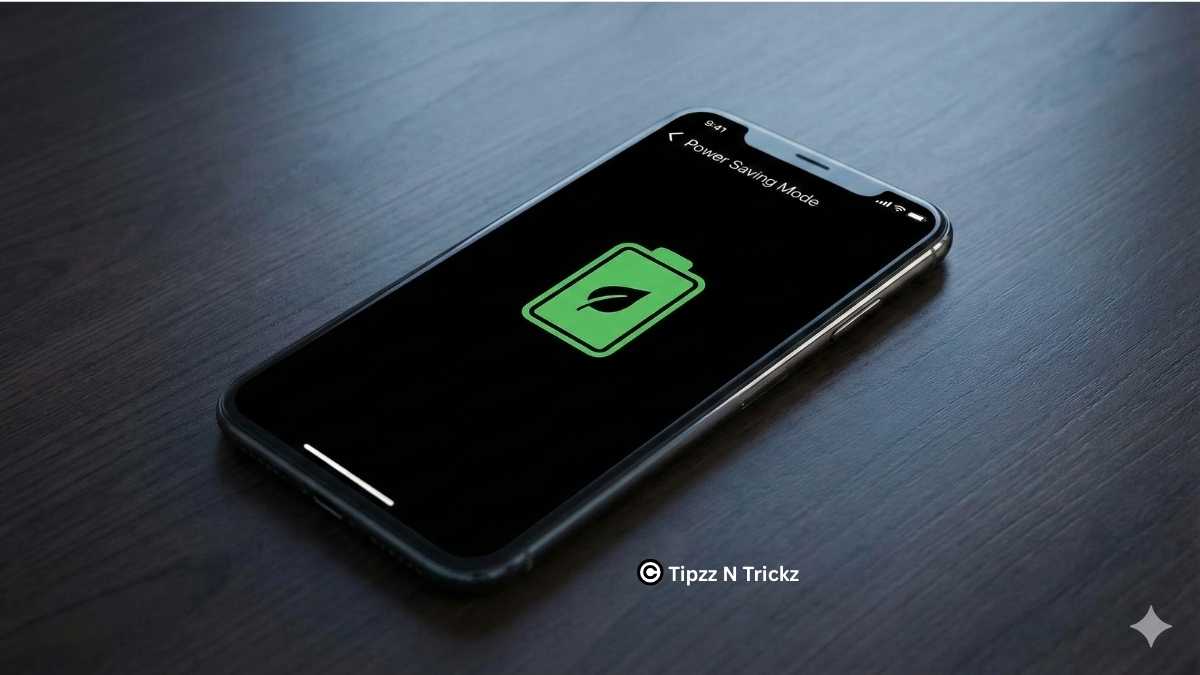
If your phone has an AMOLED screen (like most Samsungs and Xiaomis), using Dark Mode is a scientifically proven way to increase Android battery life.
Why it works: AMOLED screens turn off pixels completely to show black color. Less light = less power.
How to enable:
- Go to Settings → Display → Dark Theme.
- Bonus Tip: Use a Pitch Black wallpaper for maximum savings.
4. Turn Off ‘Nearby Device Scanning’
This is a sneaky feature hidden deep in your settings. It constantly scans for other devices—even when your Bluetooth is off. Disabling this is a quick win to stop unnecessary drain.
How to disable:
- Go to Settings → Connection Preferences (or Connections).
- Tap Nearby Device Scanning.
- Toggle it OFF.
You will still be able to use Bluetooth manually when needed.
5. Optimize Location Services

Location tracking is useful for Maps, but your phone often scans for Wi-Fi and Bluetooth to improve accuracy, even when they are off. This kills your battery.
How to fix it:
- Go to Settings → Location → Location Services.
- Find Wi-Fi Scanning and Bluetooth Scanning.
- Turn BOTH OFF.
Your GPS will still work perfectly fine, but your standby time will improve.
6. Lower Screen Refresh Rate
High refresh rates like 120Hz make scrolling look smooth, but they force your screen to refresh 120 times every second.
What to do:
- Go to Settings → Display → Motion Smoothness (or Refresh Rate).
- Switch to 60Hz (Standard) when you are just reading or texting.
Switching back to 60Hz is one of the most effective ways to increase Android battery life during long travel days.
7. Uninstall Bloatware to Increase Battery Life

Your phone likely came with pre-installed apps (Bloatware) that you never use. These apps often run background processes that wake up your CPU.
How to clean up:
- Go to App Drawer.
- Long press on apps you haven’t opened in a month.
- Tap Uninstall.
- If you can’t uninstall, tap Disable.
Less junk running in the background means more juice for the apps you actually use.
Conclusion
You don’t need a bigger battery; you just need smarter settings. By applying these 7 tweaks, you can easily increase Android battery life by 2-3 hours of screen-on time.
Which of these tricks worked best for you? Let me know in the comments below!
(Don’t forget to check our Web Stories section for visual tips!)
Frequently Asked Questions (FAQ)
Q: Does Dark Mode really increase Android battery life? Yes, but mainly on AMOLED screens. It turns off pixels to show black, significantly reducing power consumption.
Q: Should I use Battery Saver apps? No. Most third-party battery apps run in the background and show ads, which actually drains your battery faster.
Q: Why is my battery draining overnight? It is usually due to “Wake Locks” from apps running in the background or syncing data. Use “Bedtime Mode” to fix this.
Related Posts
- Top 7 AI Tools You Must Try in 2025 – Boost Productivity
- Vivo X200 FE & Vivo X Fold 5 Launched in India – Specs, Price, Offers & Comparison
Stay Connected
📱 Instagram: @tipzzntrickz
📘 Facebook: @tipzzntrickz
💬 Questions? Visit our Contact or About